Say you're a DP prepping a short film on a tight budget, and your director leans over during a monitor check and says, "Does this look right in Apple TV?" You nod — but which Apple TV do they mean? The $129 black puck sitting under a television, or the log gamma curve baked into every frame of footage you're shooting? These are two completely different things, and on a working film set, confusing them costs you time, credibility, and sometimes the entire look of your movie.
The phrase "two Apple TVs every filmmaker must know" sounds like a trick question at first. It isn't. It's a gap in film education that nobody talks about plainly, so let's fix that right now.
Know what you're delivering to — the device or the color space — and you'll never hand off a grade that falls apart on someone else's screen.
The Answer Up Front: Two Apple TVs, Two Completely Different Jobs
The first Apple TV is the streaming device — the hardware box that displays content on a television. The second is Apple Log (sometimes called Apple Log gamma), the logarithmic color profile available on iPhone 15 Pro and later, designed to capture maximum dynamic range for professional post-production. One lives in your living room. The other lives inside your camera. Both matter to filmmakers, but for entirely different reasons at entirely different stages of production.
Apple TV the Device: What Filmmakers Actually Need to Know About It
The Apple TV 4K (third generation) supports Dolby Vision, HDR10, and high frame rate content up to 4K at 60fps. For independent filmmakers, this matters the moment your film leaves the edit and enters distribution. Streaming platforms that deliver to Apple TV devices — think Apple TV+ itself, or any service using the Apple TV app — expect your deliverable to meet specific color volume specs. If your master is wrong, the device's tone-mapping algorithm will quietly mangle your grade, and you won't know until someone watches it on their living room screen and wonders why the shadows look crushed.
Practically speaking, if you're targeting any streaming platform, pull the technical delivery specs for Apple TV 4K playback early in post. Dolby Vision Profile 8 is the most common path for indie filmmakers because it works from a single-layer HDR10 base with a Dolby Vision enhancement layer on top. You don't need a $50,000 Dolby Vision suite to get there — DaVinci Resolve Studio handles it. What you need is to know the target before you start grading, not after.
A common mistake: finishing a grade on a cheap consumer monitor, exporting in Rec. 709, and assuming the streaming platform will "handle the rest." It won't. Platforms ingest what you give them. If Dolby Vision metadata is missing, the Apple TV device will play your film back in standard dynamic range even if the screen is capable of HDR. You essentially left half the picture quality on the table.
Apple Log: The Color Profile That Changes How You Should Shoot
Apple Log is a logarithmic gamma curve introduced on iPhone 15 Pro and iPhone 15 Pro Max. It's available when shooting in ProRes video format, and it behaves exactly the way any professional log format does — it looks flat, desaturated, and almost ugly straight out of the camera. That's the point. Log formats compress the wide dynamic range of a scene into the limited data range of the codec, preserving highlight and shadow detail that a "normal" picture profile would clip.
For filmmakers, Apple Log is significant for two reasons. First, it puts a genuinely usable log format in a device that millions of people already own. Second, Apple released an official Color Space Transform (CST) plugin and a set of LUTs so that colorists working in DaVinci Resolve, Final Cut Pro, and compatible software can properly interpret the footage. Without applying that transform, your Apple Log footage will look like a washed-out mistake. With it, you've got real latitude to build a grade.
The mistake most people make is shooting Apple Log and then slapping a generic "cinematic LUT" on top without first applying the Apple Log to Rec. 709 transform. The LUT assumes a starting point. If your starting point is wrong, the LUT makes everything worse — skin tones go green, skies turn muddy, and shadows block up in ways that feel unfixable.
How These Two Apple TVs Interact in a Real Post Pipeline
Here's where it gets genuinely interesting, and where understanding both pays off. Imagine you shoot a micro-budget feature on iPhone 15 Pro Max in ProRes with Apple Log. Your footage has real dynamic range — maybe 12 to 13 stops on a good day. You import into DaVinci Resolve, apply the Apple Log CST, build your grade, and export a Dolby Vision master. That master plays back on an Apple TV 4K device and looks exactly the way you intended. The two Apple TVs — the shooting profile and the playback device — form a complete pipeline.
That pipeline is now accessible to filmmakers who couldn't have dreamed of it five years ago. A phone, a $300 stabilizer, a free version of DaVinci Resolve for grading (with Resolve Studio for the Dolby Vision export), and a $129 Apple TV 4K for final QC playback on a reference-grade OLED television. That's a professional delivery chain for under a thousand dollars in hardware.
For deeper work on building your shooting and post workflow from the ground up, the guides at OnSet Report's cinematography section and pre-production planning resources are worth keeping open in a second tab.
Calibrating Your QC: Using the Apple TV Box as a Reference Monitor
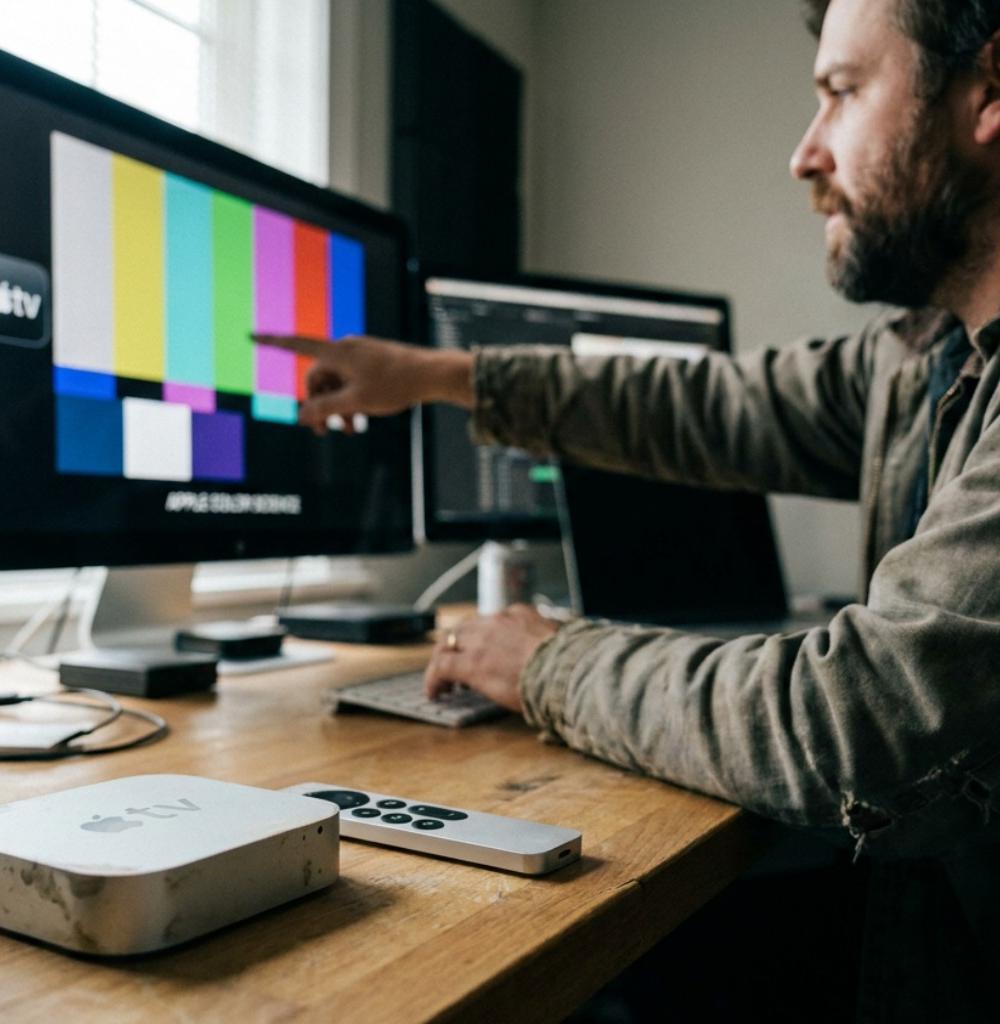
Most indie filmmakers cannot afford a Dolby Vision reference monitor. The cheapest certified reference displays start around $3,000 and climb fast. But an Apple TV 4K connected to a high-quality OLED consumer television — a 55-inch LG C-series runs around $1,100 to $1,300 depending on sales — gives you a surprisingly honest look at how your grade will appear to a home viewer. It's not a certified reference. It is a real-world QC pass that catches the obvious problems: crushed blacks, blown highlights, color casts, and compression artifacts that only show up at full screen.
Do your reference pass in a dark room. Disable all the television's "enhancement" features — motion smoothing, local dimming presets, anything auto. Set the TV to its most accurate picture mode (usually labeled "Cinema" or "Filmmaker Mode"). Then play your export from a USB drive or AirPlay it directly from your laptop. Watch it like an audience member, not an editor. That's where the mistakes reveal themselves.
Common Mistakes Filmmakers Make With Both Apple TVs
- Shooting Apple Log and forgetting to flag it in post, leading to footage interpreted as Rec. 709 and graded incorrectly from frame one.
- Delivering HDR content without proper Dolby Vision metadata, so the Apple TV device tone-maps it incorrectly for every viewer.
- Using a consumer television in "Vivid" mode as a QC monitor — it flatters nothing and lies about everything.
- Ignoring Apple's own LUT and CST resources, which are free and accurate, in favor of paid third-party LUTs that assume a different log curve.
- Finishing a grade optimized for theatrical projection and never checking how it looks on the small screen where most of your audience will actually watch it.
If you're still figuring out how to structure your post-production pipeline, the articles in directing and on-set workflow and film festival submission strategy cover the downstream decisions that depend on getting your technical delivery right.
Why This Matters More Right Now Than It Did Two Years Ago
The iPhone is now a legitimate production tool on professional sets — not as a novelty, but as a camera that cinematographers choose deliberately. Tangerine showed what was possible before any of this infrastructure existed. Now there's a log format, a free CST, ProRes recording, and a delivery device that can display the results in Dolby Vision. The barrier between "indie filmmaker with a phone" and "professional streaming deliverable" is the knowledge gap, not the gear gap.
That knowledge gap is exactly what separates a film that looks like a film from footage that looks like a test. Close it, and the two Apple TVs stop being a source of confusion and start being the beginning and end of a pipeline you actually control.
If you want a structured path through the full production and post workflow — from first frame to final deliverable — FilmmakerGenius is free to start and built specifically for independent filmmakers navigating exactly this kind of technical and creative decision-making.
FAQ
Keep reading: Film Distribution Platforms: The Indie Guide, What Apple Actually Wants From Your Film, and iTunes Store Rejected My Film for This — Fix It Fast.
Do I need to shoot Apple Log to deliver to Apple TV devices?
No. Apple TV 4K plays back any properly formatted HDR or SDR content regardless of how it was shot. Apple Log is a shooting tool for capturing dynamic range. The Apple TV device is a playback tool. You can shoot in any log or picture profile and still deliver correctly for Apple TV playback — what matters is the final export specs, not the camera format.
Is Apple Log available on all iPhones?
As of this writing, Apple Log is available on iPhone 15 Pro and iPhone 15 Pro Max when shooting in ProRes video. It is not available on standard (non-Pro) models or on earlier iPhone generations. Apple's own support pages are the most reliable place to check availability as new models release.
Can I grade Apple Log footage in free DaVinci Resolve?
Yes, for most grading work. The Apple Log to Rec. 709 color space transform and Apple's official LUTs work in the free version of DaVinci Resolve. If you need to export a Dolby Vision master for streaming delivery, that requires DaVinci Resolve Studio, which is a one-time purchase — check Blackmagic Design's site for current pricing.
What's Filmmaker Mode on a TV, and should I use it for QC?
Filmmaker Mode is a picture preset available on many LG, Samsung, and Vizio televisions that disables motion smoothing, maintains the original frame rate, and targets accurate color. For a real-world QC pass, it's the closest setting to a neutral view. It won't replace a calibrated reference monitor, but it will catch errors that matter to regular viewers.
How do I know if my export will look right on Apple TV hardware?
Play it back on an actual Apple TV 4K connected to an OLED display in Filmmaker Mode or Cinema Mode in a darkened room. Check highlights, shadows, and skin tones on a scene you know well. If you have access to a Dolby Vision-certified display for even a few hours, use it for a formal QC pass. There's no substitute for watching the actual output on the actual device.